
You can batch email thousands of contacts in Follow Up Boss. So where is the batch text button?
The short answer: there isn’t one. Follow Up Boss does not include mass texting. You can still do Follow Up Boss bulk texting by connecting a texting integration that sends one message to a whole FUB smart list. This guide shows you how, and how to avoid getting your number flagged.
Does Follow Up Boss have bulk texting?
No. Follow Up Boss (FUB) does not have a built-in way to send one text to a list of contacts. Its texting is built for 1-to-1 and group conversations. There is no “send to all” button for texts.
This is a deliberate choice. In its Help Center article on drip and mass texting, Follow Up Boss explains that it leaves drip and mass texting to partner integrations to protect your business number’s reputation. FUB also warns that mass texting can be risky. We agree, so this guide shows the careful way to do it.
Email is different. FUB does include batch email, and according to the Batch Emailing Overview, each user can send up to 10,000 emails per day. That is why so many agents look for a text version.
Bulk texts vs drip texts: which one do you need?
These two often get mixed up:
| Bulk text | Drip text | |
|---|---|---|
| What it is | One message to a list, sent once | A series of messages sent over days or weeks |
| Triggered by | You, when you choose | A lead entering an Action Plan |
| Best for | Open houses, new listings, events, market updates | New lead follow-up, long-term nurture |
| Typical size | A filtered list of contacts | One contact at a time, automatically |
In Texting Betty, both use the same building block: a Follow Up Boss Action Plan. A bulk text is simply an Action Plan launched on a whole smart list at once. If you want automated sequences instead, our drip campaign tutorial walks through the setup. For a wider look at what FUB texting can and cannot do, see Follow Up Boss Texting: What It Can and Can’t Do.
How to send a bulk text from Follow Up Boss with Texting Betty
Texting Betty is a texting partner listed by Follow Up Boss. You build the list in FUB, write the message in FUB or in the Texting Betty dashboard, then launch the send from the dashboard.
1. Build your list as a smart list in FUB. Filter down to only the contacts who should get this message, then save it as a smart list.
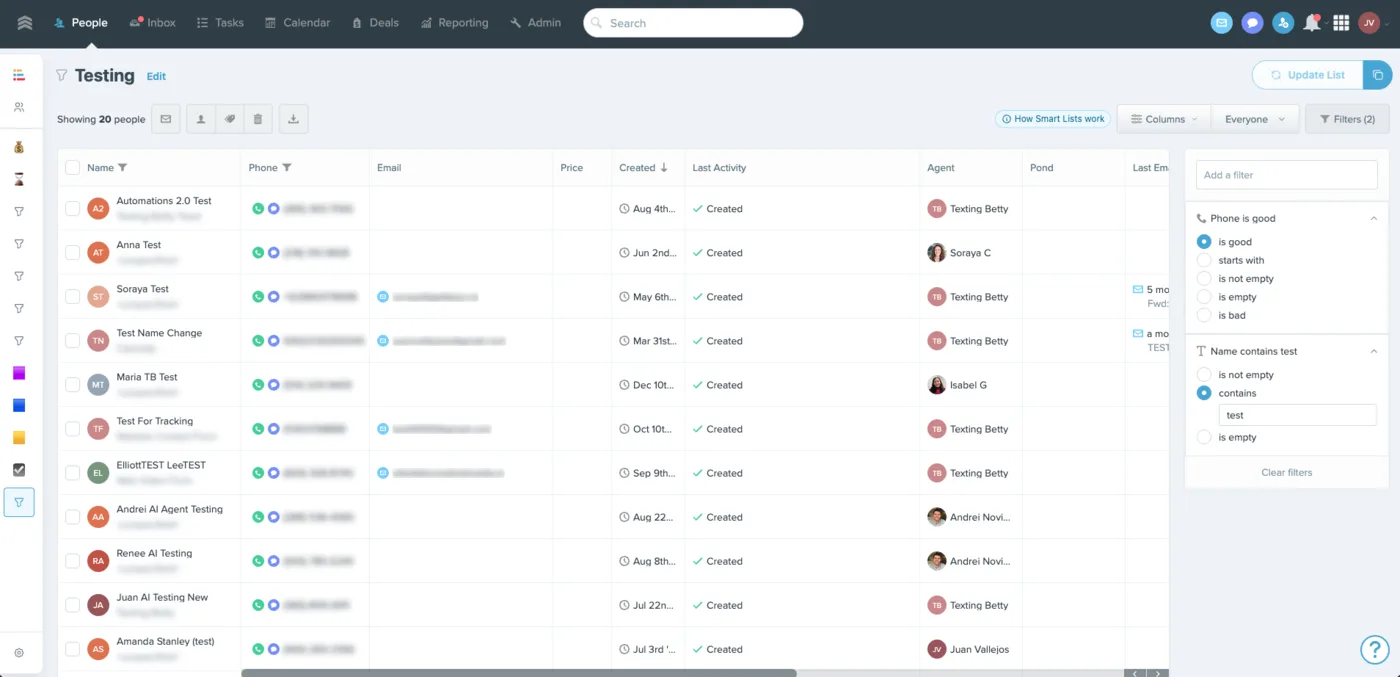
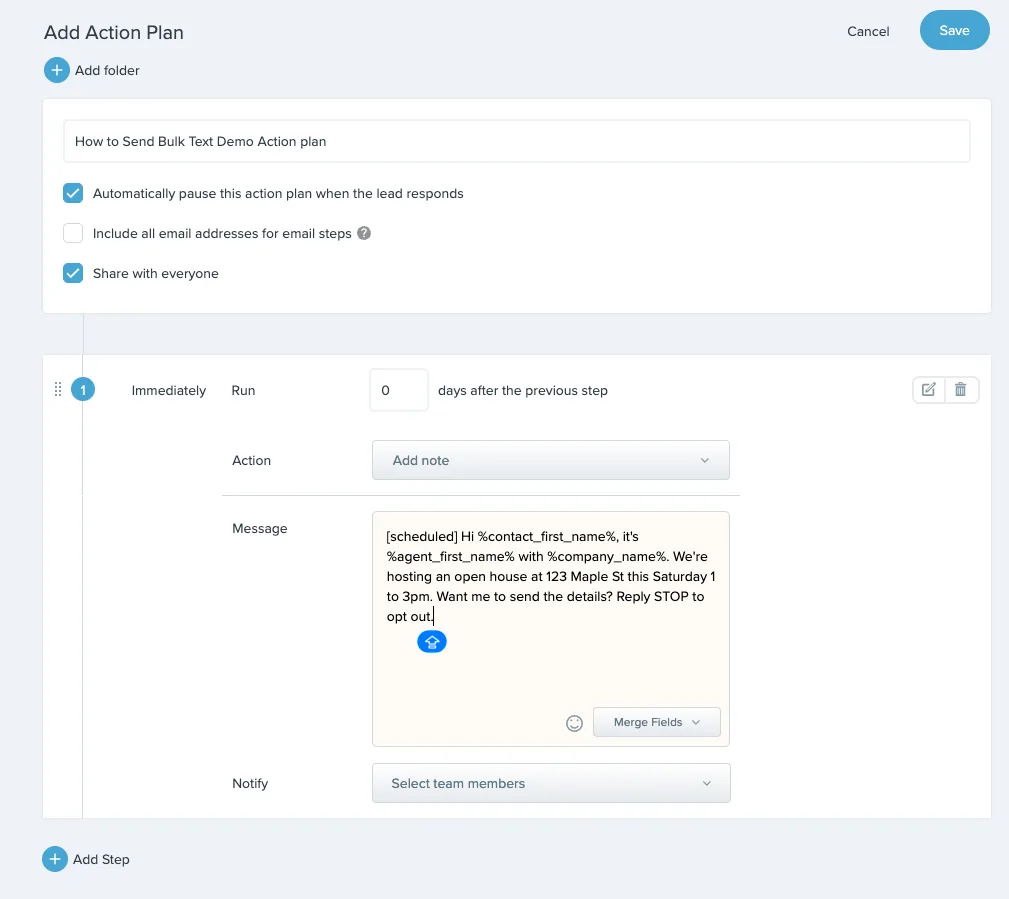
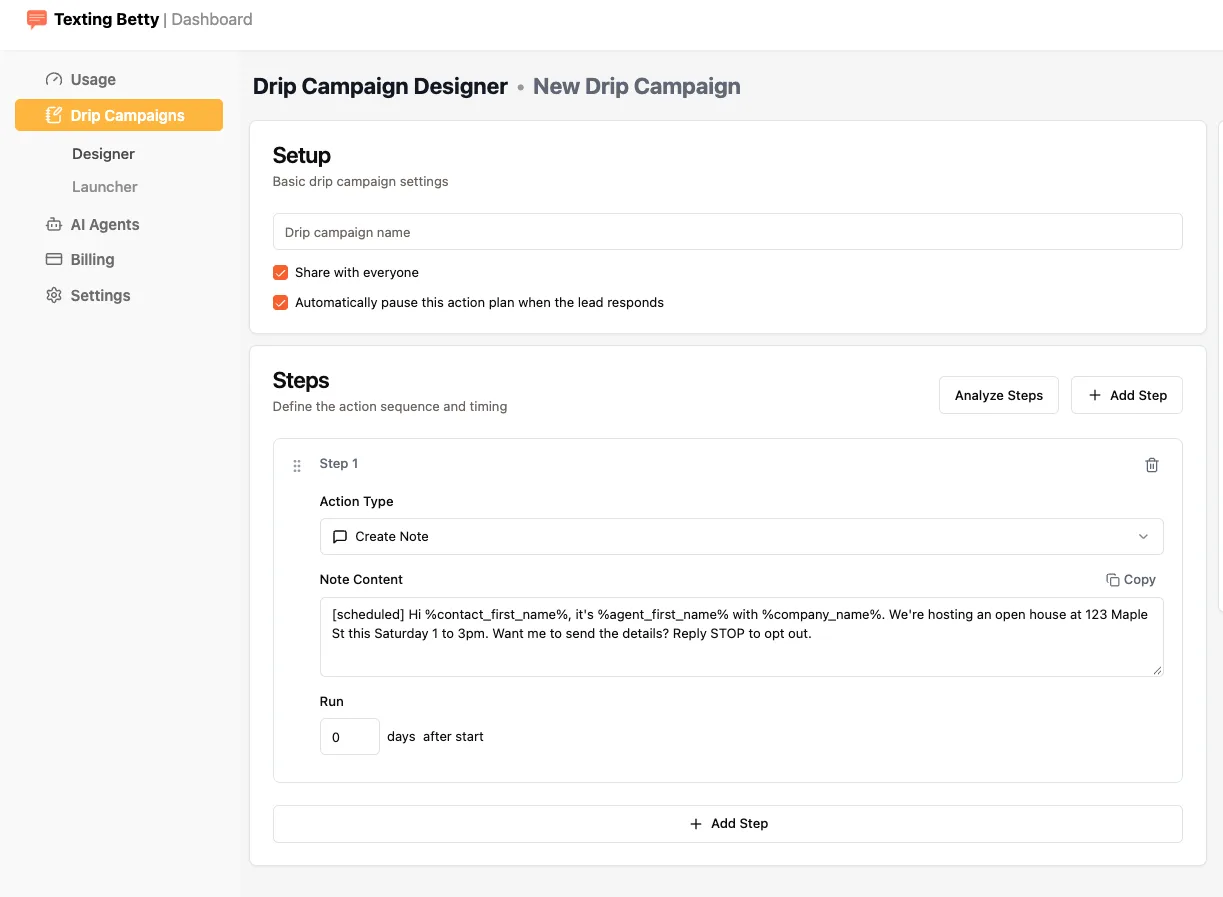
2. Write the message in an Action Plan. Create an Action Plan with one step and start the text with a Texting Betty tag in square brackets. You can do this in two places, and both save the same Action Plan in Follow Up Boss:
- In Follow Up Boss: add a step with the action type Add Note and write your message in it.
- In the Texting Betty dashboard: go to Drip Campaigns > Designer, add a step with the action type Create Note, and write your message in Note Content.
Merge fields such as %contact_first_name% work the same either way.
3. Choose when it sends. Timing is set inside the Action Plan, in either tool. Use [scheduled] to send right away within business hours, a time tag such as [10:15am], a specific date and time, or a day delay on the step. All tags are in our guides.
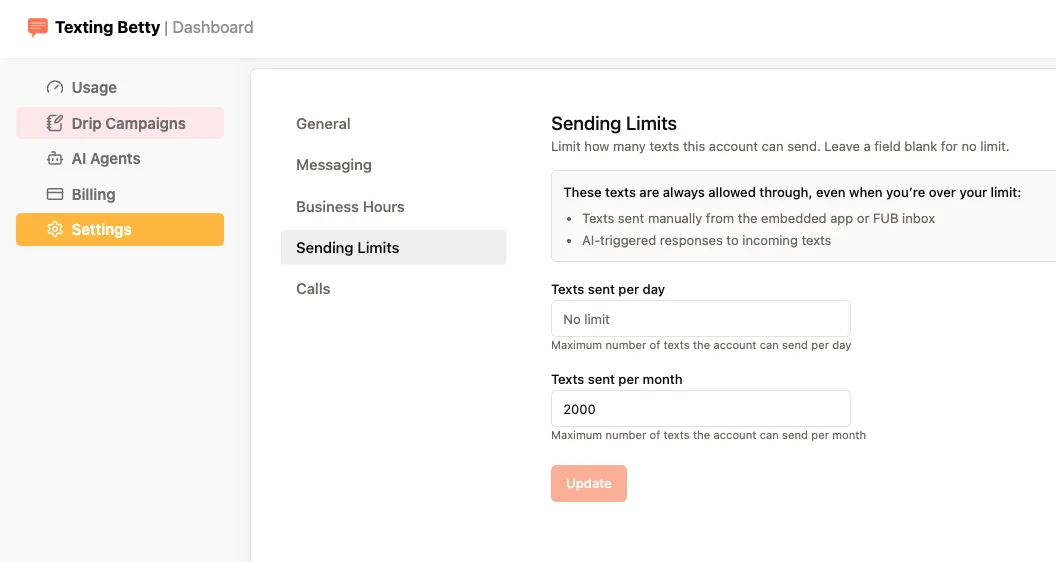
4. Check your sending limits. Make sure your daily and monthly limits in Texting Betty settings are high enough. New accounts start at 200 texts per month, and you can change that during onboarding or at any time in settings. If your limit is lower than the size of your list, the campaign stops partway. Here is how to set sending limits in Texting Betty.
5. Test on a small batch. In the Texting Betty Launcher, launch the Action Plan on a small smart list first, 20 to 30 contacts or just your own team, and check that the message and merge fields look right on a real phone.
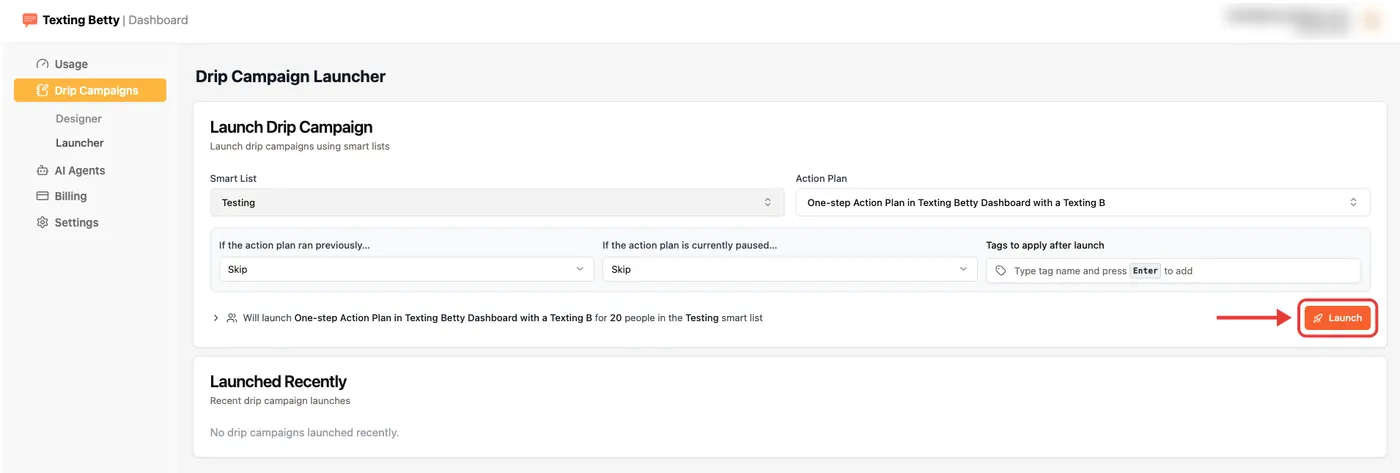
6. Launch it. Open the Texting Betty dashboard and go to Drip Campaigns > Launcher. Choose your list under Smart List and your Action Plan under Automation. Check the confirmation line, which reads like “Will launch [automation] for 137 people in the [smart list] smart list”. If the number of people looks right, press Launch.
- “If the automation ran previously…” defaults to Skip, so contacts who already received this campaign are not texted twice.
- “If the automation is currently paused…” also defaults to Skip.
- “Tags to apply after launch” lets you tag everyone in the send, for example “Open House Oct 24 Invite”.
- Launched Recently shows past launches.
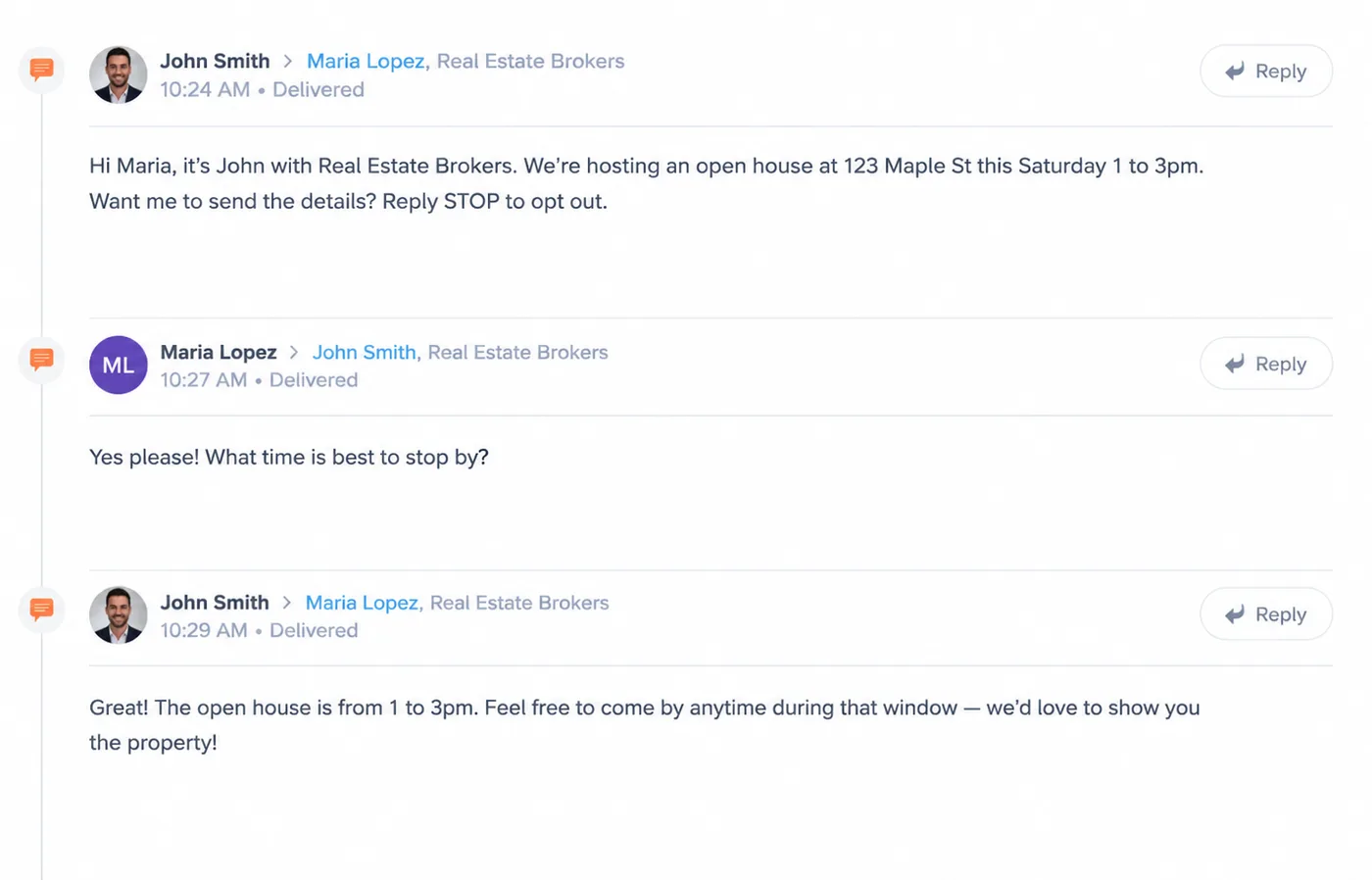
7. Watch the replies. Replies arrive in your FUB inbox and on each contact’s timeline.
Tip: sending a large campaign for the first time? Contact Texting Betty support before you launch. The team can flag problems in advance.
Prefer to watch? This short video walks through the Launcher:
How many contacts can you text at once?
There is no fixed limit on the size of a bulk send in Texting Betty. Teams have sent campaigns to 3,000 to 5,000 contacts. What is sensible depends on three things:
- Your sending limits. New accounts start with a default limit of 200 texts per month. Raise it in settings before a bigger campaign.
- Your plan. Each plan includes a set number of texts per month. A large campaign can go past that, and extra texts are billed at $0.08 to $0.10 each depending on the plan. Replies count toward usage too.
- Your list quality. Sending to people who do not expect it draws opt-outs and complaints.
7 rules for bulk texting without hurting deliverability
Mobile carriers filter messages that look like spam, and business texting requires carrier registration (10DLC). Texting Betty submits it for you in every plan.
- Text only people who agreed to hear from you. Consent matters for business texting. Follow Up Boss explains what carriers look for in its article on how to obtain proper opt-in consent on your website. Never text a purchased or cold list. This is general information, not legal advice.
- Segment hard. A message to 60 past clients in one neighbourhood beats a message to 2,000 random leads.
- Say who you are. Put your first name and your team or brokerage in the first text.
- Include a simple opt-out. Add a line such as “Reply STOP to opt out” on the first message a contact gets from you.
- Stay inside business hours. Here is how to restrict Texting Betty activity to business hours.
- Test small, then send big. Launch to 20 to 30 contacts first. For a first large send, check with support.
- Write like a person. Short, one clear question, no ALL CAPS, no link shorteners, no “FREE!!!”.
What happens when people reply
Replies show in the Follow Up Boss inbox and on each contact’s timeline, so anyone on the team can answer.
When a contact replies, Texting Betty stops the Action Plan for that contact and removes any texts scheduled for the same day. Texts already scheduled for a future date are not removed. If your campaign has a second message queued for a later date, cancel it for anyone who has already answered, using the [delete] tag or the Embedded App.
Tip: the texting_betty_engaged tag is added automatically when a contact needs a response, and removed once they have one. Build a FUB smart list on that tag so nobody is missed after a big send.
5 bulk text examples you can copy
Swap the placeholders for these Follow Up Boss merge fields:
{First Name}:%contact_first_name%{Agent Name}:%agent_first_name%{Team}:%company_name%{Address},{Neighbourhood},{Area},{Date}: type these by hand
- Open house: “Hi {First Name}, it’s {Agent Name} with {Team}. We’re hosting an open house at {Address} this Saturday 1 to 3pm. Want me to send the details?”
- New listing: “Hi {First Name}, {Agent Name} here. A new home just listed in {Neighbourhood} that fits what you described. Want the link before the weekend?”
- Market update: “Hi {First Name}, it’s {Agent Name}. Home prices in {Area} shifted this month. Want a quick update on what your home could sell for?”
- Client event: “Hi {First Name}, {Agent Name} from {Team}. We’re hosting our client appreciation night on {Date}. Can I save you a spot?” For ideas on running the event itself, see how to use AI agents for client appreciation events.
- Check-in: “Hi {First Name}, {Agent Name} here. It’s been a while. Are you still thinking about a move this year, or should I check back later?”
If this is the first text a contact gets from you, add “Reply STOP to opt out” at the end. Test every message on your own contact record first. Planning seasonal sends? Here is how to schedule holiday text messages in Follow Up Boss.
Frequently Asked Questions
Can you send a mass text in Follow Up Boss?Not natively. Follow Up Boss leaves mass texting to partner integrations, so you need one such as Texting Betty.
How many contacts can I text at once?There is no fixed limit in Texting Betty. Check your sending limits and plan first, and test on a small batch.
Can I schedule a bulk text for later?Yes. Timing is set in the Action Plan, either with a time tag, a specific date and time, or a day delay on the step.
Will bulk texts come from my main FUB number?No. Texting Betty provisions a new dedicated texting number for every account, so your main Follow Up Boss line stays separate.
Do replies show up in Follow Up Boss?Yes. Replies appear in the FUB inbox and on the contact timeline.
Is a group text the same as a bulk text?No. A group text puts everyone in one shared thread. A bulk text goes to each contact separately, so every reply is a private 1-to-1 conversation.
Is bulk texting legal for real estate agents?Rules on consent and opt-outs exist and vary, so check with your broker or attorney. Follow Up Boss explains what carriers expect in its opt-in consent article. This is general information, not legal advice.
How much does each text cost?Texting Betty plans include a set number of texts per month, with extra texts at $0.08 to $0.10 each depending on the plan. Both sent and received messages count toward usage.
What is the difference between batch email and bulk text in FUB?Batch email is built into Follow Up Boss, with up to 10,000 emails per user per day. Bulk text is not built in and needs a texting partner.
Send your next bulk text the careful way
Bulk texting works when it is targeted, tested and respectful. Build a focused smart list, say who you are, check your limits, test small, then launch. Your replies stay in Follow Up Boss.
Related posts
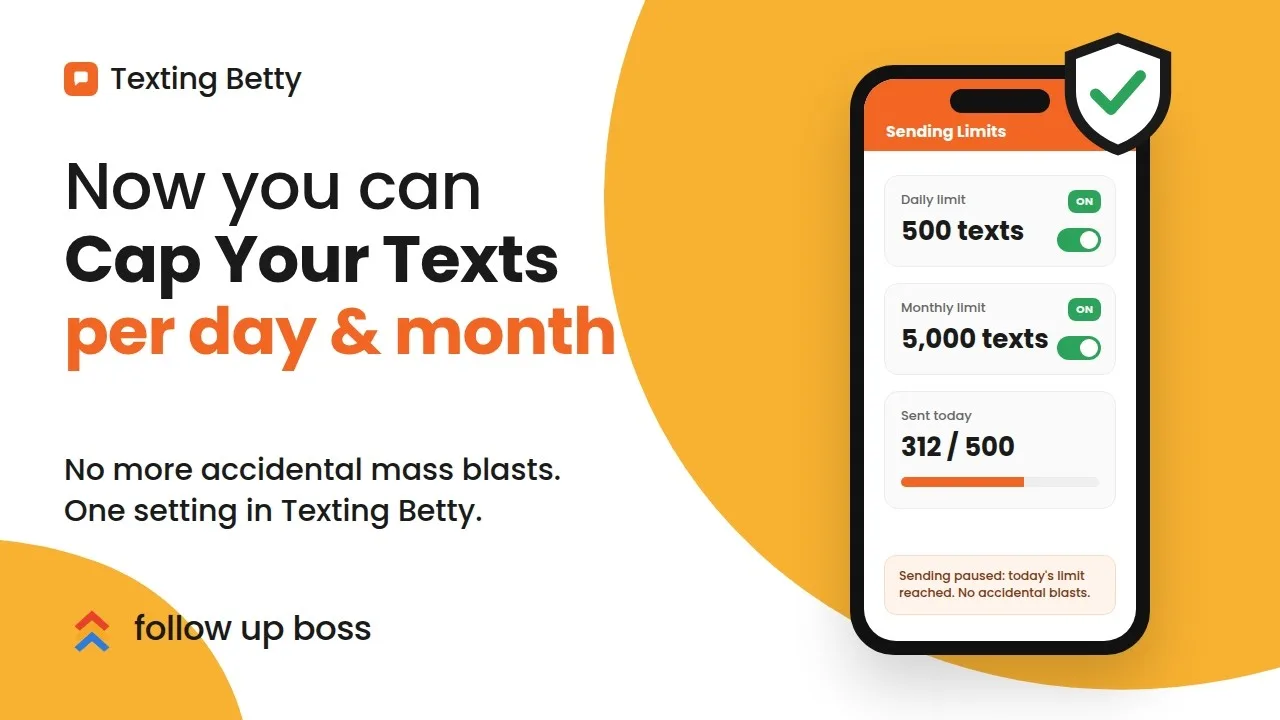
How to Set Sending Limits in Texting Betty
Set daily and monthly Texting Betty sending limits to stop runaway automation while keeping manual messages and AI replies flowing.
How to Verify Your Texting Betty Setup and Earn Your $200 Credit
Verify your Texting Betty setup, complete four tasks, and unlock your $200 credit fast.
How to Give Delegated Access to Your Follow Up Boss Account
Grant secure, time-boxed access in Follow Up Boss for support and integrations, with clear limits and instant revoke.