
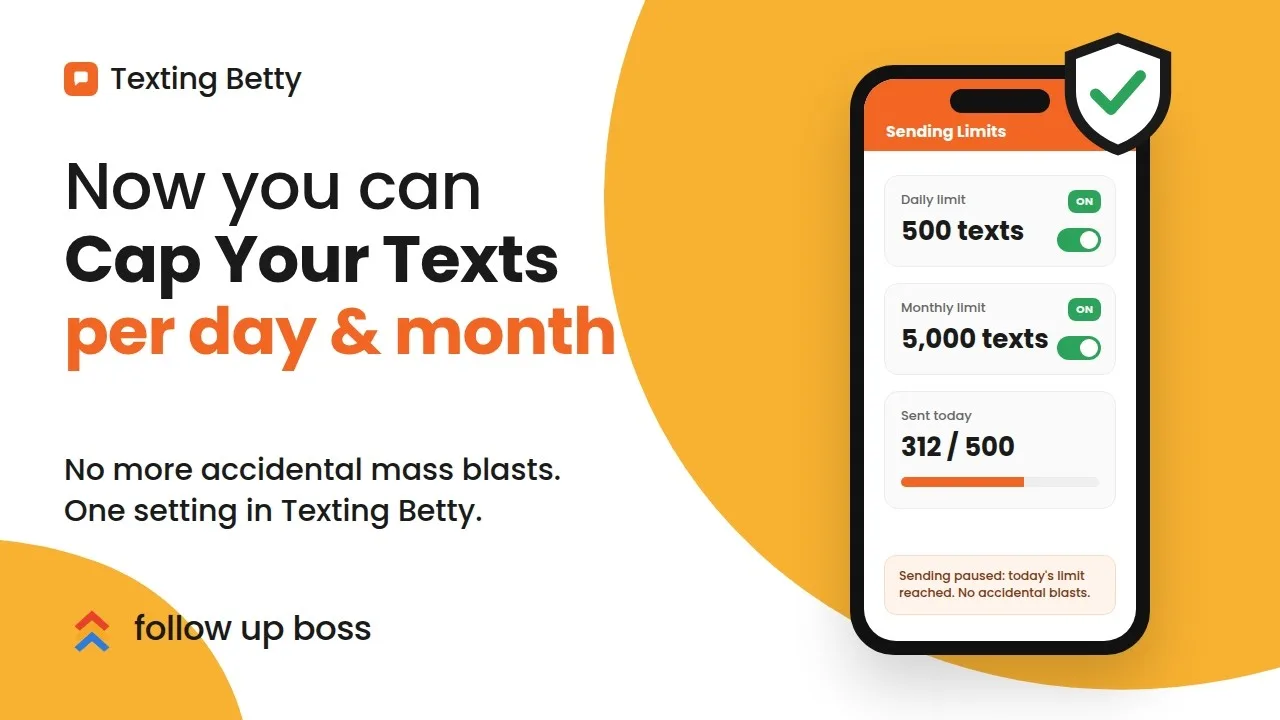
Picture this. You hire a new ISA. They’re in Follow Up Boss learning your texting action plans, and they select every contact in your database and send. Thousands of people get a text they should never have received, and you get the bill for it.
Sending limits exist so that can’t happen. You set a ceiling on how many messages Texting Betty will send automatically, per day and per month, and anything past that ceiling stops and waits for you.
What Counts Against the Limit, and What Doesn’t
The limit applies to messages Texting Betty sends automatically through your action plans and automations. That’s the thing that can run away from you, so that’s what gets capped.
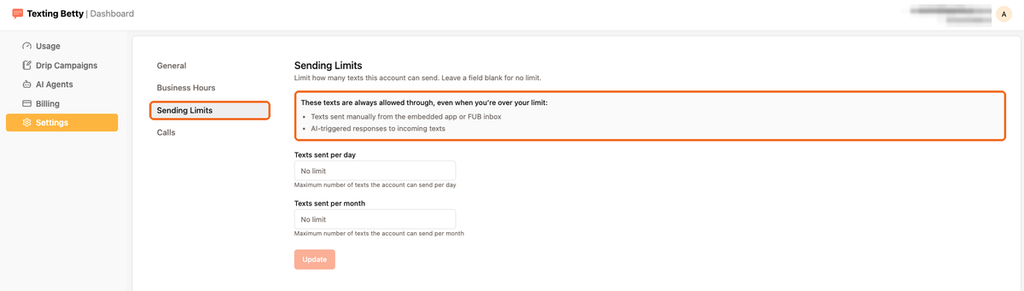
Two things are deliberately excluded: messages you send manually, whether from the embedded app or from your Follow Up Boss inbox, and messages sent by the AI Agent. That exclusion is the point. If a lead texts you back, you and the AI can keep replying no matter where your automated volume sits. A safety limit that blocked you from answering a real conversation would cause more damage than the problem it solves.
Where to Find the Setting
Open Follow Up Boss and pull up any lead. In the Texting Betty panel on the right, click Dashboard, then Access Dashboard. That opens your dashboard in a new tab.
From there go to Settings, then Sending Limits. You’ll see two fields: one for per day, one for per month.
Choosing Your Numbers
Start from your plan. Whatever your plan includes per month, a good rule of thumb is to set the monthly limit to roughly double that.
The logic: if you’re regularly sending more than double your plan, the right answer isn’t to keep paying overage, it’s to move up a plan. Meanwhile the limit stops your costs from running away while you figure that out. So on a plan that includes 1,000 messages a month, 2,000 is a sensible monthly ceiling.
The daily limit does a different job. It’s there to stop a single bad afternoon, so it doesn’t need to divide evenly into your monthly number. Something like 200 a day gives you room for a heavier day of campaigns while still making a full database blast impossible.
Once both are set, click Update.
You don’t have to fill in both. Leaving a field blank means no limit for that period, so if you only want a monthly ceiling, set that one and leave the daily one empty
What Happens When You Hit the Limit
Texting Betty checks your limits before sending, so messages over the line don’t go out. They’re held.

You’ll get an email, and an alert appears at the top of your dashboard telling you how many texts were blocked. From there you have two buttons: Send them pushes them out anyway, Discard them throws them away.
The important detail is that held messages are never sent automatically. They wait for you to decide, so nothing goes out behind your back once you’re over the line. If you’d rather deal with it later, leaving them alone is fine, they’ll still be there.
That’s the whole point of the feature. Hitting your limit isn’t a failure state where messages vanish. It’s a checkpoint where you get to look at what was about to go out before it does.
Questions?
If you’re not sure what to set, or something isn’t behaving the way you expect, email support@textingbetty.com and we’ll help you pick the right numbers for your plan.
Related posts

How to Send Bulk Texts in Follow Up Boss
Follow Up Boss has batch email but no bulk texting. Here is how to text a list of contacts from FUB safely, step by step.

How to Verify Your Texting Betty Setup and Earn Your $200 Credit
Verify your Texting Betty setup, complete four tasks, and unlock your $200 credit fast.
How to Give Delegated Access to Your Follow Up Boss Account
Grant secure, time-boxed access in Follow Up Boss for support and integrations, with clear limits and instant revoke.