
Follow Up Boss Action Plan Texts: Complete Guide With 5 Ready-to-Use Sequences
Action Plans are the engine of follow-up in Follow Up Boss. Emails send themselves. Texts usually turn into a task that someone has to remember to do by hand. That is a problem, because according to Zillow's 2025 Consumer Housing Trends Report for Agents, 50% of buyers who used an agent prefer texting or messaging apps, and 33% prefer phone calls.
The short answer: with a texting integration, a Follow Up Boss Action Plan text becomes an automatic step that sends at the time you choose. This guide covers the setup, seven timing rules, and five text sequences you can copy today.
Can Follow Up Boss Action Plans send texts automatically?
Not on their own. Follow Up Boss (FUB) explains in its Help Center article on drip and mass texting that drip and mass texting are not included, to protect your business number's reputation. FUB focuses on 1-to-1 texting and leaves automated text sequences to partner integrations.
Without an integration, most teams add a "text this lead" task to the Action Plan and rely on the agent to send it. On a busy week, those tasks are the first thing to slip. For a full picture of what is built in, see Follow Up Boss Texting: What It Can and Can't Do.
With Texting Betty, the text step sends by itself, on schedule, from a dedicated texting number, and the conversation stays in FUB.
How automated texts work in an Action Plan
The mechanism is a little unusual, so here it is step by step:
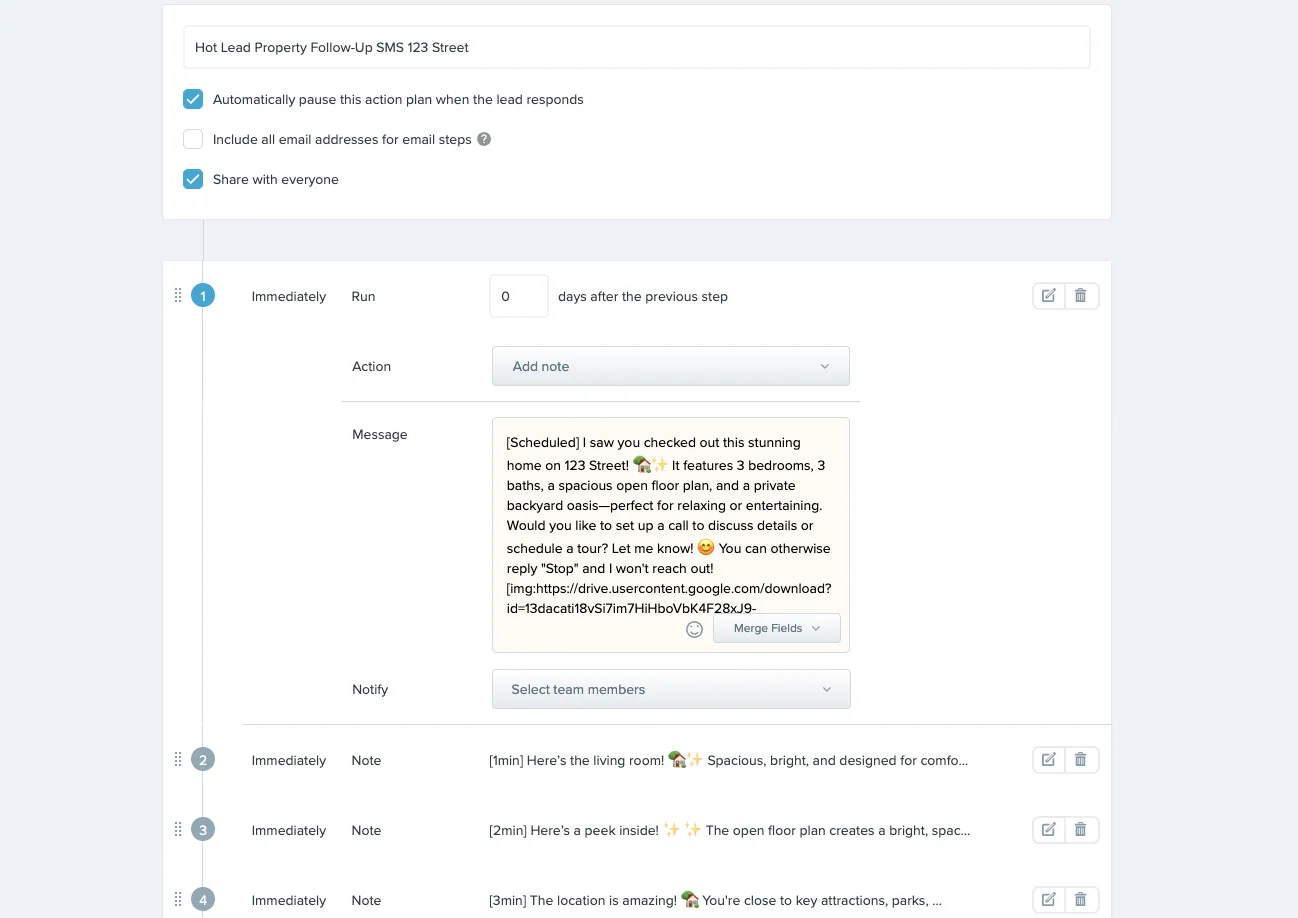
- In the Action Plan, you add a step and choose the action type Add Note.
- You start the note with a Texting Betty tag in square brackets. The tag tells Texting Betty when to send.
- After the tag, you write the message, the same way you would write an email, merge fields included.
- When the step runs, Texting Betty sends the text to the lead's primary phone number, and it shows on the lead's timeline.
These are the tags you will use most, from our Texting Betty tags manual:
| Tag | What it does | When to use it |
|---|---|---|
[scheduled] | Sends right away if it is inside business hours. Otherwise it sends as soon as the business opens. | The first text to a new lead |
[9am], [9:30am], [1pm] | Sends at that time. If the time has already passed, it sends right away. | Day 2 and later steps |
[1h], [2h], [30min], [5min] | Delays the text by that amount | When another tool (for example Ylopo Raiya) contacts the lead first |
| A specific date and time | Sends on that date. Ask Texting Betty support for the exact format. | One-off sends, such as an event reminder |
[delete] | Removes a scheduled text that has not been sent yet | Cancelling a text |
Two things to know:
- Avoid
[now]. Action Plans can run very early in the morning, and[now]sends the moment the step runs. - Deleting the note text does not cancel a scheduled text. Use the
[delete]tag, or remove the text in the Embedded App.
Tip: the Texting Betty article in the Follow Up Boss Help Center suggests odd send times, such as [11:13AM] instead of [11:30AM], so messages feel less automated. Keep the tag format consistent, with no spaces between the numbers and letters.
Step by step: add a Follow Up Boss Action Plan text
You can build the plan in two places, and both save the same Action Plan in Follow Up Boss. The steps below use FUB. The Texting Betty dashboard option comes right after.
1. Open Action Plans. In FUB, go to Admin > Action Plans and click + Action Plan to create a new plan, or open an existing one.

2. Name it clearly. For example, "New Buyer Lead, 14 Day Text + Email". A clear name makes the plan easy to find when you start it from Lead Flow or launch it to a list.
3. Add a step and set the action type to Add Note. This is the step Texting Betty reads and turns into a text.
4. Type the tag, then the message. For example:
[scheduled] Hi %contact_first_name%, it's %agent_first_name% with %company_name%. I saw you were looking at homes in Westside. Are you hoping to move soon, or just starting to look?
5. Set the first step to run immediately. That way the first text goes out as soon as the plan starts, inside business hours.
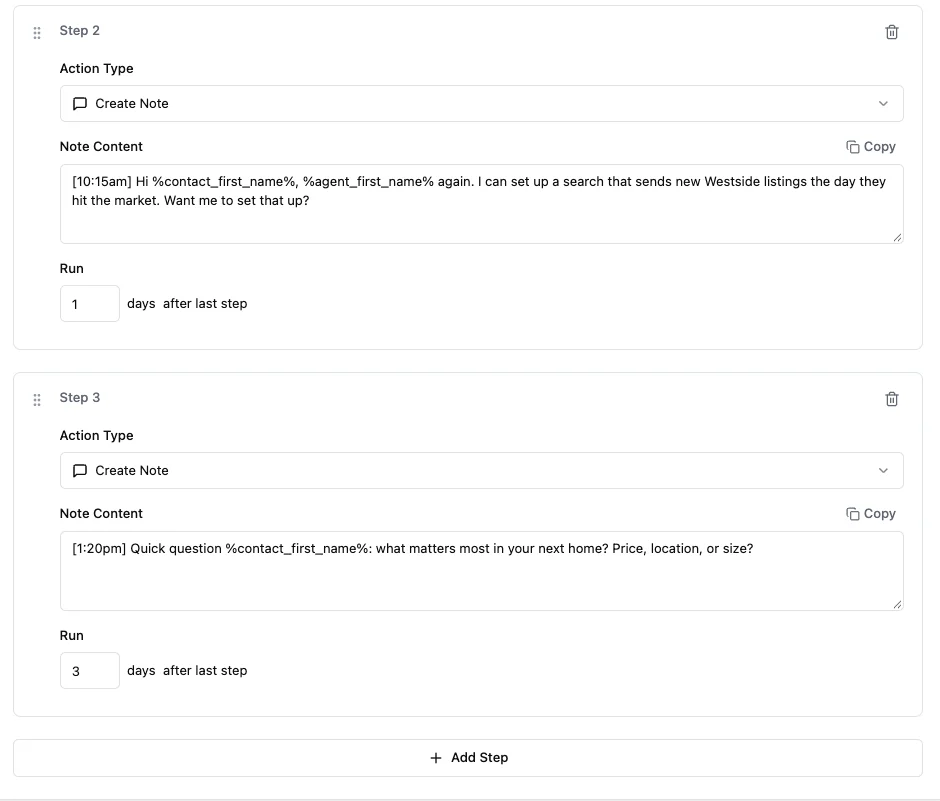
6. Add the next step. Set "Run" to the number of days to wait, and start the note with a time tag such as [10:15am].
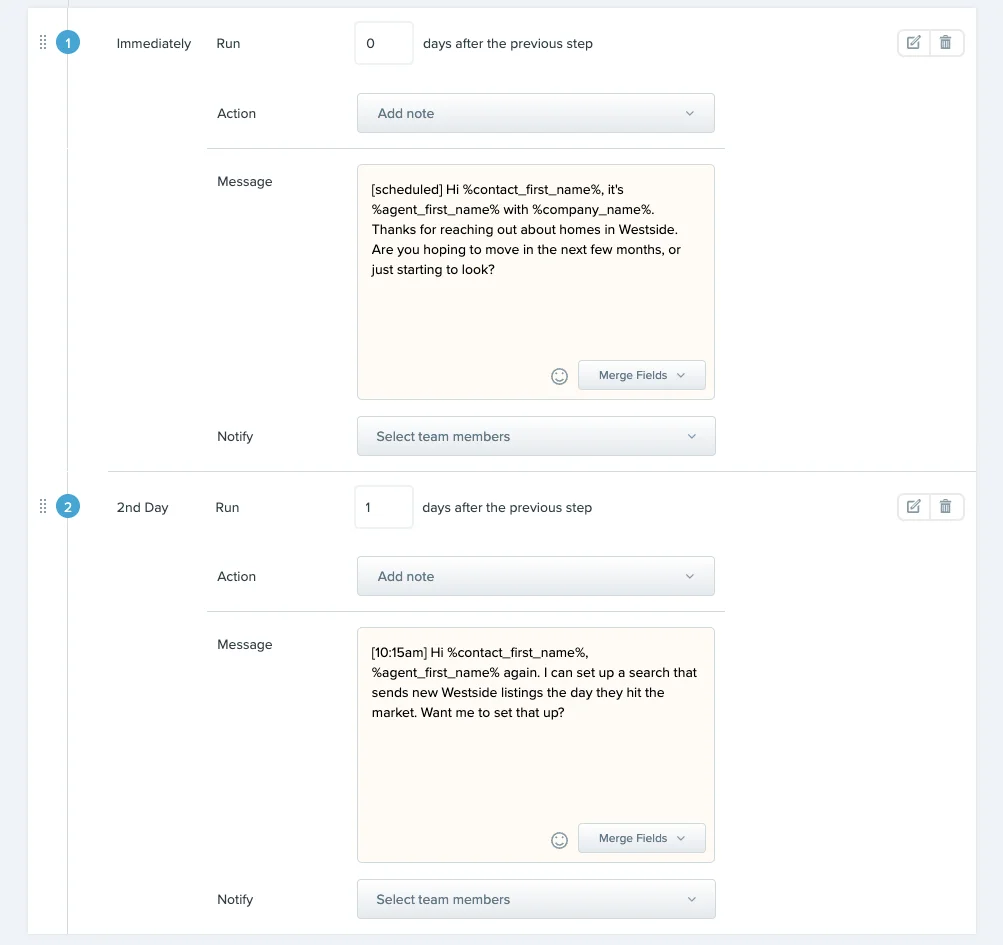
7. Repeat for each text. Mix in email steps and call tasks on other days.
8. Save the plan.
9. Test it on your own contact record. Start the plan on yourself before you use it on real leads, and check that the merge fields fill in correctly on a real phone.
Or build it in the Texting Betty dashboard
Prefer a builder made for texts? Open the Texting Betty dashboard and go to Drip Campaigns > Designer. Add a step with the action type Create Note, write the tag and message in Note Content, and set Run for each step: the first step counts days after start, and each later step counts days after the last step. When you save, the plan is saved as a regular Action Plan in Follow Up Boss.
About merge fields
Merge fields work the same in Texting Betty texts as in FUB emails. Here are the ones used in the sequences below:
{First Name}:%contact_first_name%{Agent Name}:%agent_first_name%(or%agent_name%for the full name){Team}:%company_name%{Area}: no merge field, type it by hand or use a FUB custom field
The full list is in the Follow Up Boss merge fields guide.
Prefer to watch? This short video walks through a text drip campaign in Follow Up Boss. For the quick click-by-click version, see our drip campaign tutorial.
Ways to start an Action Plan
Once the plan is saved, there are three ways to start it for one lead at a time in Follow Up Boss, plus one way to start it for a whole list:
- Lead Flow: start the plan automatically for every new lead from a given source.
- Automations: start the plan when a lead meets a condition, such as a stage change or a tag being added.
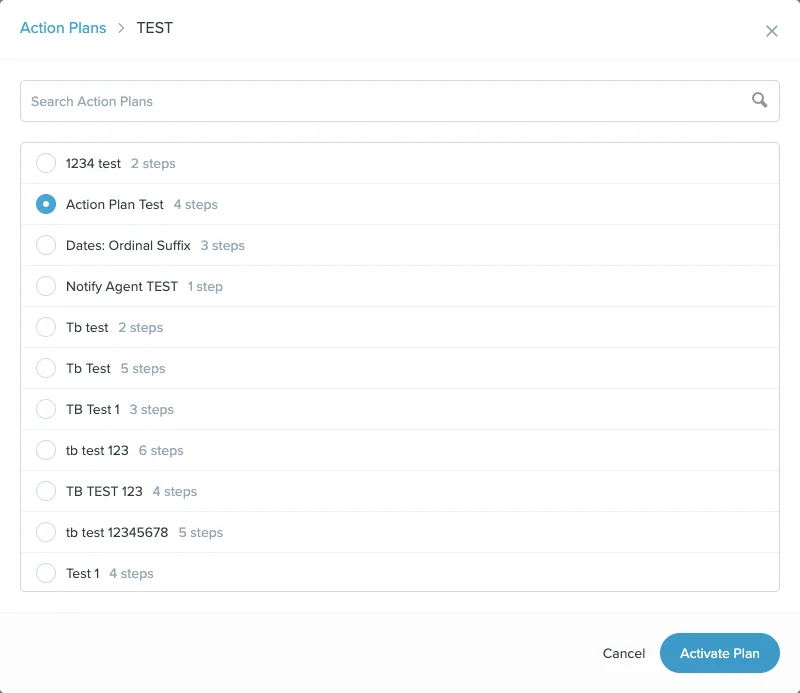
- Manually: on the lead profile, choose Start Action Plan, pick the plan, then Activate.
- For a whole smart list: in the Texting Betty dashboard, go to Drip Campaigns > Launcher, choose the Smart List and the Action Plan, check the confirmation line ("Will launch [plan] for N people in the [list] smart list"), then press Launch. Here is how to send bulk texts in Follow Up Boss with the Launcher.
7 timing rules for text sequences
- Send the first text fast. New leads are most likely to reply right after they inquire. The same Zillow report found that 47% of buyers and 59% of sellers hire the first agent they speak with. Use
[scheduled]on the first step. - Stay inside business hours. Nobody wants a text from an agent at 11pm. Here is how to restrict Texting Betty activity to business hours.
- Front-load, then spread out. Send several touches in the first week, then weekly, then monthly.
- One question per text. Make every message easy to answer in a few words.
- Mix channels. Put a text, an email and a call task on different days.
- Stop when they reply. Texting Betty does this for you. When a lead replies, it stops the Action Plan and removes any texts scheduled for that same day. Texts already scheduled for a future date are not removed, so cancel those with
[delete]or from the Embedded App. - Cap the sequence. After 6 to 8 unanswered texts, move the lead to a slower long-term nurture plan.
Running several plans at once? Check your daily and monthly caps first. Here is how to set sending limits in Texting Betty.
5 text sequences you can copy
Each sequence below lists the day, the tag and the message. "Day" counts from the day the plan starts. In both Follow Up Boss and the Texting Betty Designer, each later step runs a number of days after the previous step, so enter the gap instead: Day 3 after a Day 1 step is "Run 2 days". Swap the placeholders for the merge fields above, keep every message short, and test the plan on your own contact record first. If this is the first text a contact gets from you, add "Reply STOP to opt out" at the end.
Sequence 1: New buyer lead (14 days, 6 texts)
For: new buyer inquiries from your website or portals. Goal: start a conversation and learn their timeline.
| Day | Tag | Message |
|---|---|---|
| 0 | [scheduled] | Hi {First Name}, it's {Agent Name} with {Team}. Thanks for reaching out about homes in {Area}. Are you hoping to move in the next few months, or just starting to look? |
| 1 | [10:15am] | Hi {First Name}, {Agent Name} again. I can set up a search that sends new {Area} listings the day they hit the market. Want me to set that up? |
| 3 | [1:20pm] | Quick question {First Name}: what matters most in your next home? Price, location, or size? |
| 5 | [11:10am] | Hi {First Name}, are you working with a lender yet? Happy to share a couple that my clients like. |
| 9 | [4:05pm] | {First Name}, a few new homes came up in {Area} this week. Want me to send the best two? |
| 14 | [10:40am] | Hi {First Name}, I don't want to bug you. Should I keep sending updates, or check back in a few months? |
Sequence 2: New seller lead (10 days, 5 texts)
For: home value requests and seller inquiries. Goal: find out if they are serious or just curious.
| Day | Tag | Message |
|---|---|---|
| 0 | [scheduled] | Hi {First Name}, it's {Agent Name} with {Team}. Thanks for asking about your home's value. Are you thinking of selling soon, or just curious about the number? |
| 1 | [10:25am] | {First Name}, online estimates can be off by a lot. I can put together a real price range using recent sales near you. Want me to? |
| 3 | [2:10pm] | Quick one {First Name}: have you made any updates to the home in the last few years? It changes the price range. |
| 6 | [11:35am] | Hi {First Name}, a home near you just sold. Want to know what it went for? |
| 10 | [10:05am] | {First Name}, should I check back closer to when you might sell? Just let me know a rough timeframe. |
Sequence 3: Open house visitor (5 days, 3 texts)
For: people who signed in at an open house. Goal: get feedback and offer similar homes.
| Day | Tag | Message |
|---|---|---|
| 0 | [2h] | Hi {First Name}, it's {Agent Name}. Thanks for stopping by the open house today. What did you think of the home? |
| 1 | [11:15am] | {First Name}, if that one wasn't quite right, I know of a couple similar homes nearby. Want me to send them? |
| 5 | [1:05pm] | Hi {First Name}, still looking in {Area}? Happy to line up a few showings this week. |
Sequence 4: Old lead re-engagement (21 days, 4 texts)
For: leads who went quiet months ago. Goal: reopen the conversation, or close the loop politely.
| Day | Tag | Message |
|---|---|---|
| 0 | [10:20am] | Hi {First Name}, it's {Agent Name} with {Team}. We spoke a while back about homes in {Area}. Are you still thinking about a move? |
| 4 | [1:15pm] | {First Name}, the market in {Area} has changed since we last talked. Want a quick update? |
| 10 | [11:05am] | Hi {First Name}, did you end up buying, or are you still looking? |
| 21 | [10:10am] | {First Name}, I'll stop here so I'm not a pest. If you ever want help, just reply to this text. |
An old lead list is also a good fit for the Launcher: start this plan for a whole smart list of quiet leads at once.
Sequence 5: Past client check-in (yearly, 4 texts)
For: past clients. Goal: stay in touch a few times a year without selling.
| When | Tag | Message |
|---|---|---|
| Home anniversary | [10:30am] | Happy home anniversary {First Name}! Hard to believe it's been another year. How is the house treating you? |
| Spring | [11:20am] | Hi {First Name}, {Agent Name} here. Want a quick update on what your home is worth this year? |
| Fall | [1:10pm] | Hi {First Name}, need a recommendation for a contractor, painter or cleaner before winter? I have a few good ones. |
| December | [10:15am] | Happy holidays {First Name}! Thanks for being a client. Wishing you and the family a great year ahead. |
For the December text and other seasonal touches, here is how to schedule holiday text messages in Follow Up Boss. Need more wording ideas for any of these steps? Here are 25 real estate text message scripts for buyers, sellers, open houses and past clients.
Drip texting can make a real difference for some teams. One Follow Up Boss user reports:
"Our response rate increases an average of 20% when we incorporate drip texting."
Elena K.
Two shortcuts if you would rather not start from scratch
- Ask for the free pre-made drip campaigns. Texting Betty support shares ready-made campaigns you can use as they are or adapt to your voice.
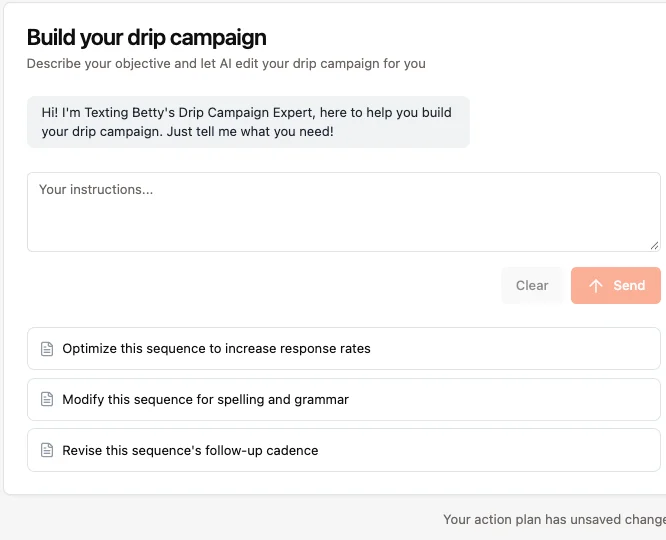
- Use the AI Action Plan Designer. Describe what you want, for example "a re-engagement sequence for leads inactive for 30+ days", and it drafts the steps for you to review.
Never miss a reply: the engaged tag
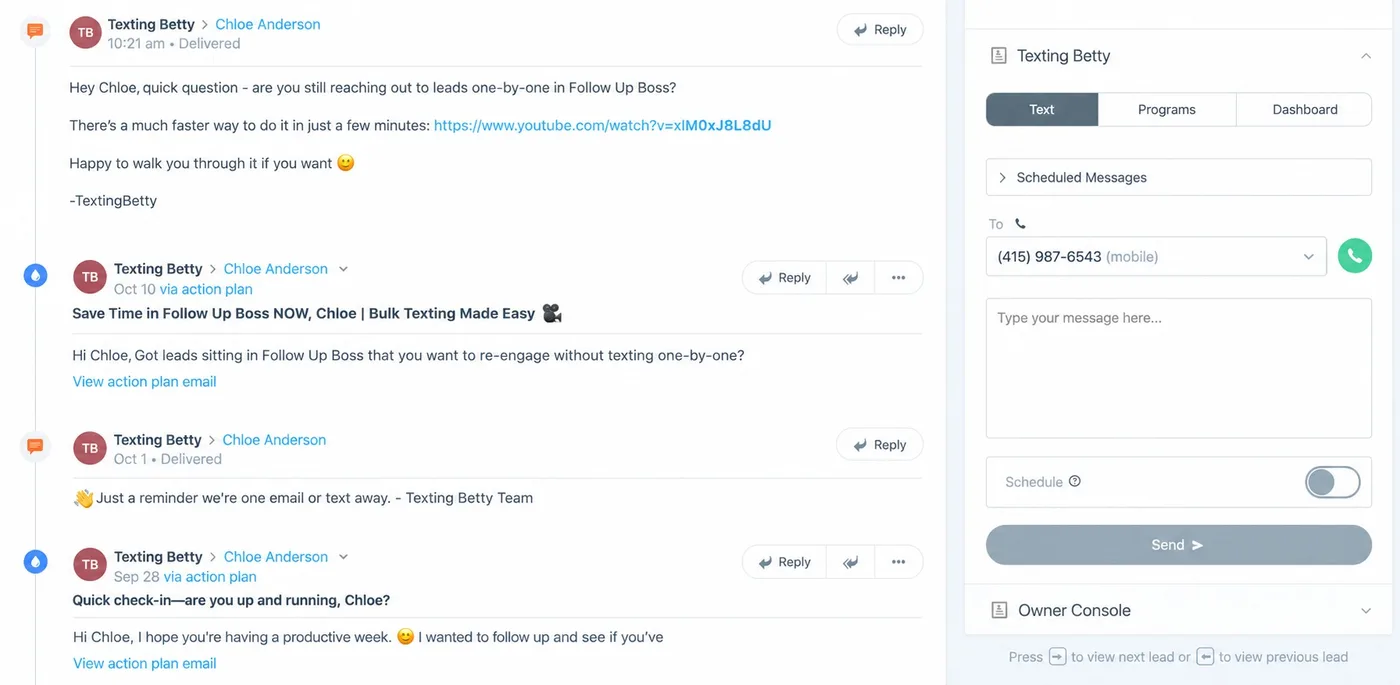
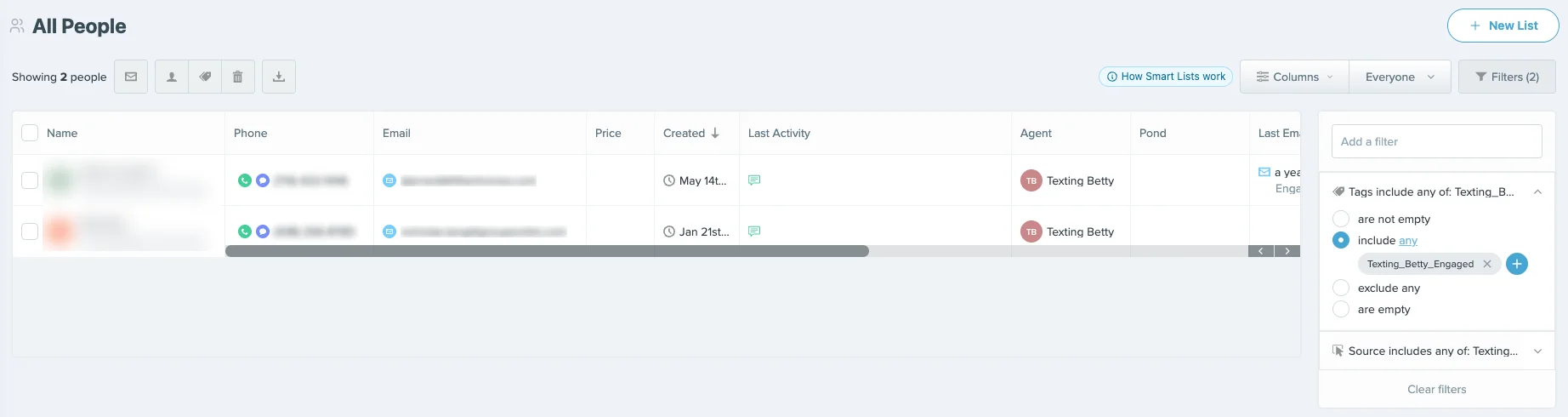
Automated texts only help if someone answers the replies. When a lead replies, Texting Betty adds the tag Texting_Betty_Engaged to their profile in Follow Up Boss. As soon as the next outbound text to that lead is delivered, whether you send it or the AI Agent does, the tag is removed automatically.
Build a Follow Up Boss smart list filtered on that tag, and it always shows exactly who is waiting for a reply. Share the list with the team so anyone can pick up a conversation, and check it a few times a day.
One team leader put it this way:
"The Texting Betty tag texting_betty_engaged is awesome... I think it's a hidden gem of a feature with big value for a team. We always know who needs a response simply by using a smart list for the tag that adds, and removes, itself automatically based on who needs a response!"
Jesse D.
How to tell if your sequence is working
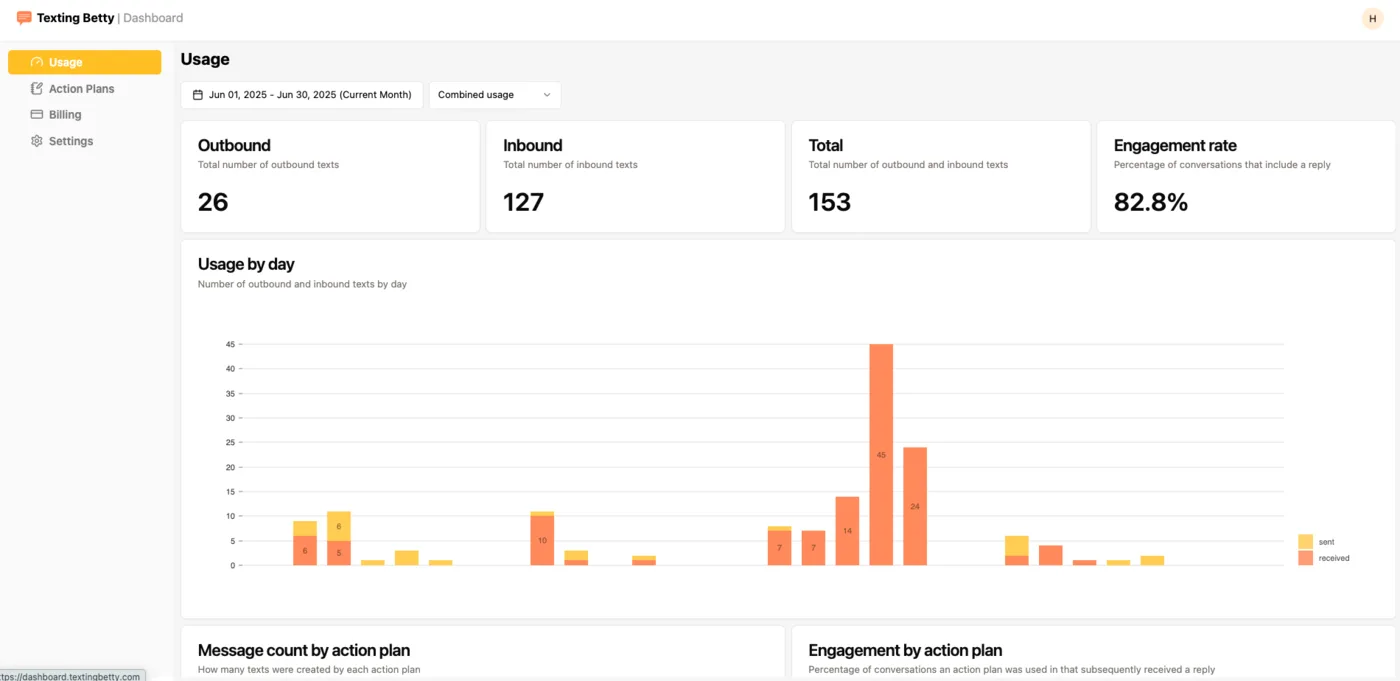
The Texting Betty Analytics Dashboard shows usage, message counts and engagement for each Action Plan, so you can see which plans start conversations.
- Reply rate: how many contacts in the plan answered at least once.
- Opt-outs: a jump after one message usually means it reads like an ad.
- The message that gets replies: look at which step most replies follow.
Change one message at a time, give it a couple of weeks, then compare. If you change everything at once, you will not know what worked.
Frequently Asked Questions
Can Follow Up Boss Action Plans send text messages?Not automatically on their own. Follow Up Boss leaves drip texting to partner integrations. With an integration such as Texting Betty, a text becomes an automatic Action Plan step.
Why is the text step an "Add Note"?That is how Texting Betty reads the instruction from the Action Plan. The tag at the start of the note sets the send time, and the rest of the note is the message.
Can I add texts to an Action Plan I already use?Yes. Open the existing plan in Follow Up Boss and add Add Note steps with a Texting Betty tag between your email and task steps.
What happens if a text is scheduled outside business hours?It waits until the business opens, then sends.
Which phone number does the text go to?The lead's primary phone number in Follow Up Boss.
How do I stop the texts when a lead replies?You do not have to. Texting Betty stops the Action Plan when the lead replies and removes texts scheduled for that same day. Texts already scheduled for a future date stay, so cancel those with the [delete] tag or in the Embedded App.
How do I cancel a scheduled text?Use the [delete] tag, or remove the text in the Embedded App. Deleting the note text alone does not cancel it.
Can I use merge fields in texts?Yes. They work the same as in Follow Up Boss emails, for example %contact_first_name% for the lead's first name. Test on your own contact record first.
How many texts should a sequence have?Usually 4 to 8, depending on the lead type. New leads get more touches in the first two weeks, and past clients get a few a year.
Start with one plan
You do not need five sequences on day one. Pick the lead type that matters most to your team right now, build one plan, test it on your own contact record, and watch the replies for two weeks. Then add the next one. Your texts go out on time, and every conversation stays in Follow Up Boss.
Related posts
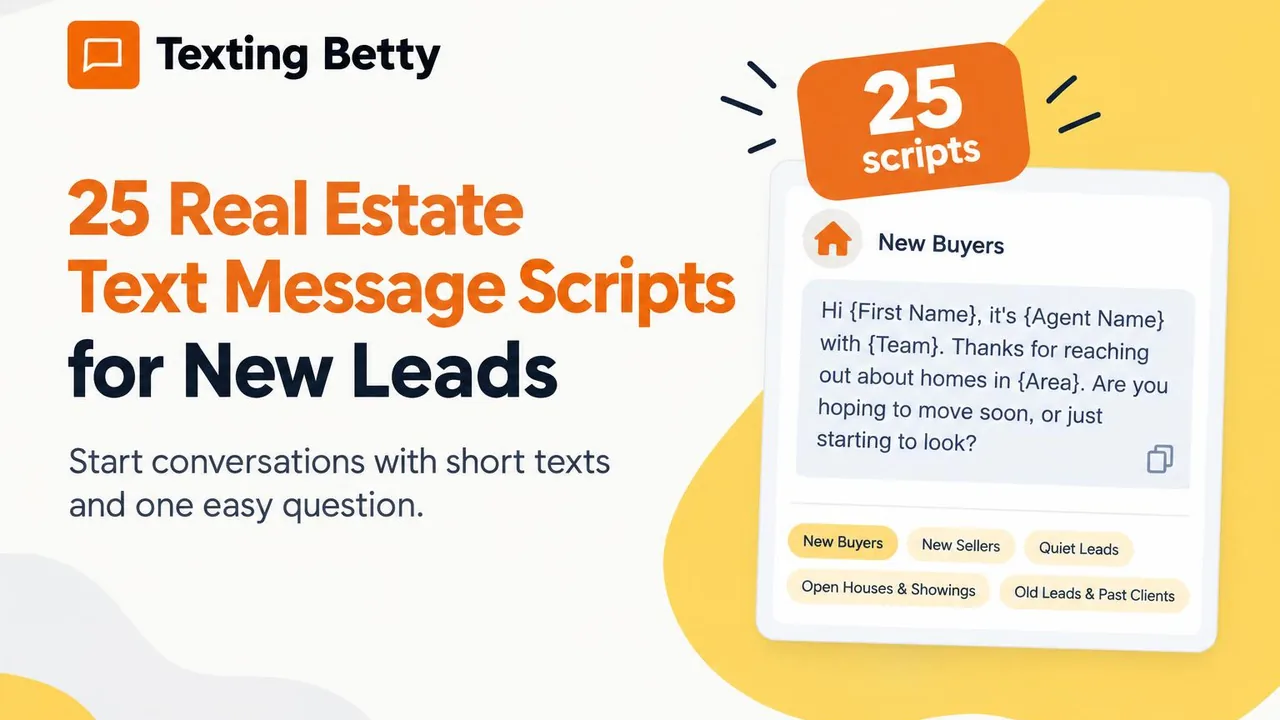
25 Real Estate Text Message Scripts for New Leads (Copy and Paste)
25 copy and paste real estate text message scripts for buyers, sellers, open houses, quiet leads and past clients, plus rules for better replies.
READ MORE »: 25 Real Estate Text Message Scripts for New Leads (Copy and Paste)
How to Send Bulk Texts in Follow Up Boss
Follow Up Boss has batch email but no bulk texting. Here is how to text a list of contacts from FUB safely, step by step.
READ MORE »: How to Send Bulk Texts in Follow Up Boss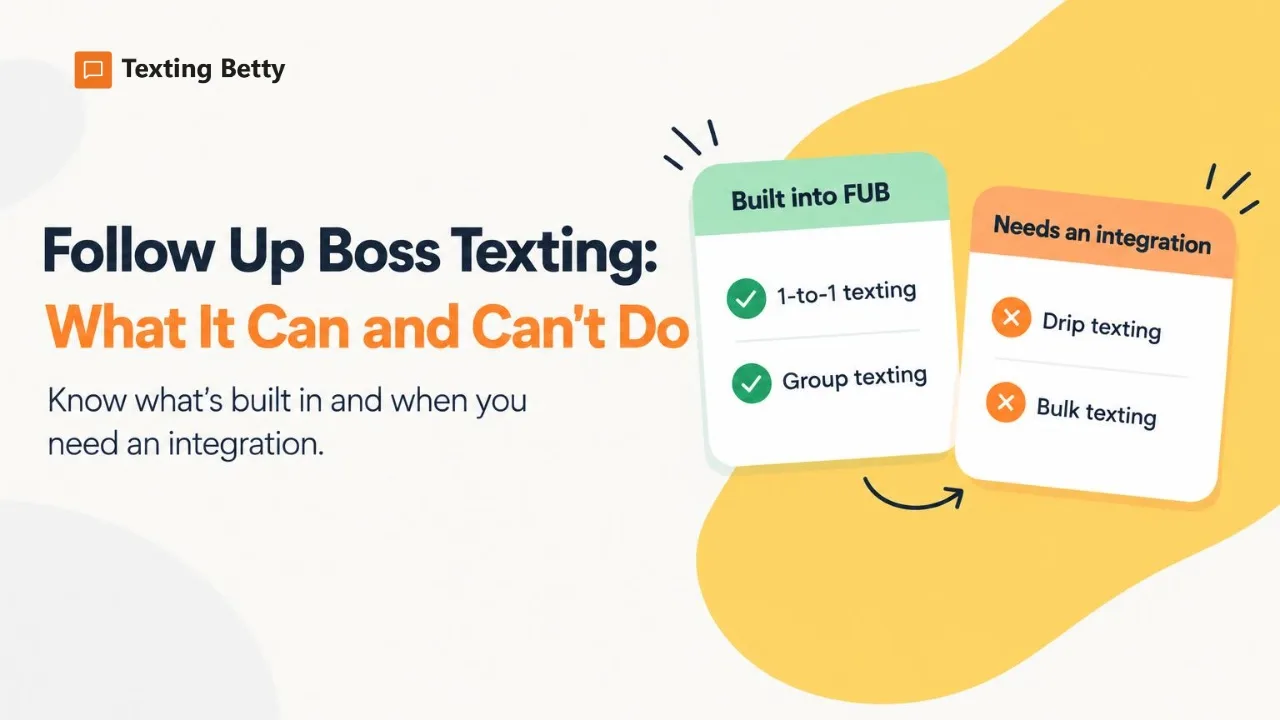
Follow Up Boss Texting: What It Can and Can’t Do
What Follow Up Boss texting includes, what it leaves out (drip and bulk texts), and how teams add automated texting inside FUB.
READ MORE »: Follow Up Boss Texting: What It Can and Can’t Do