
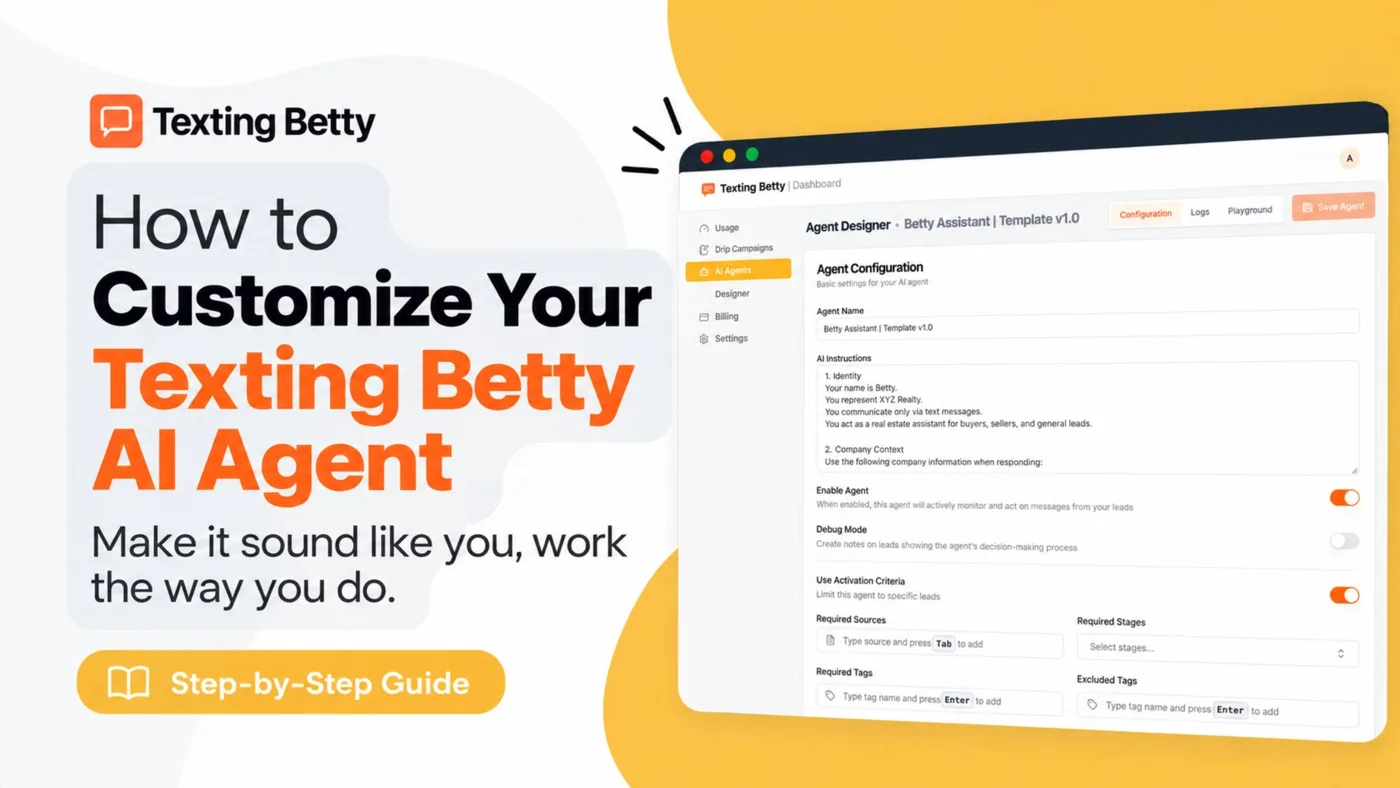
How to Personalize Your Texting Betty AI Agent Template
Every Texting Betty account starts with the same AI Agent template. It gets you live fast with a proven baseline that’s already been tested across thousands of conversations. But it also means the agent introduces itself with placeholder details and responds to a general set of situations rather than the specific way your business operates.
The good news? You have full control over how your AI Agent sounds and behaves, and you can make all the changes yourself right from the builder inside Follow Up Boss. This post walks through the key settings you can adjust to make the template truly yours.
Feel free to create your own version if your business needs something different, this is your agent and it should work the way you work. Just know that the version you’re starting from has already been tested and tuned, so in most cases it’s going to give you better results than building from scratch.
Update Your Merge Fields
The template uses variables in place of your actual business details, things like your name, your company name, and how the agent refers to whoever is texting. Before you go live, replace these placeholders in the builder so every message reads naturally instead of showing something generic or clearly templated.
This matters most in your opt-out language and any message sent early in a conversation, since those are the first impressions a new lead sees. A message that says “Hi, I’m [Agent Name] with [Company Name]” is an obvious tell that something automated is happening behind the scenes. Taking five minutes to update these fields makes a real difference in how leads perceive your communication.
Turn On the Intents You Actually Need
An intent is simply a situation the agent recognizes and knows how to respond to. A lead saying they want to buy triggers one intent. Someone asking to sell triggers another. A request for a phone call instead of texting, or a reply to opt out, each of these is a distinct intent the agent has been trained to handle.
The template ships with a baseline set of intents already enabled, but not every intent will apply to how you actually work leads. Go through the list in the builder and turn off anything that doesn’t match your workflow, and turn on anything specific to your business that isn’t covered by default. A focused set of intents means fewer mismatched replies and a better experience for leads who are genuinely trying to communicate with you.
For example, if you only work with buyers and never take listings, you might disable seller-related intents entirely. If you have a specific process for scheduling showings, make sure that intent is active and configured correctly.
Activation Criteria: Set the Tags You Want Applied

One of the most powerful features of the AI Agent is its ability to take action inside Follow Up Boss automatically, without you lifting a finger. Based on the conversation, the agent can tag a contact, move them to a new stage, add a note to their profile, or set a follow-up reminder.
In the builder, confirm which of these actions are turned on and which tags they apply. If you have a specific tagging system your team uses for pipeline management, make sure the agent is applying tags that fit into that existing workflow rather than creating new ones nobody recognizes.
You can also customize your opt-out keyword here. If you’d rather not use “STOP” as the default trigger, set a custom keyword that makes more sense for your brand or communication style.
Exclude the Leads You Don’t Want Texted
Not every lead in your Follow Up Boss database should receive AI-powered messages. If you’re running another tool alongside Texting Betty, the agent already knows to skip leads tagged as engaged elsewhere so you don’t end up double-texting someone who’s already in a conversation with another system.
Beyond that automatic exclusion, you can build your own exclusion list directly in Follow Up Boss. Tag any leads you want the agent to leave alone, past clients you’re handling personally, VIPs who need a human touch, or anyone else you’d prefer to contact manually, and confirm that tag is set as an exclusion in your AI Agent settings.
Leads can also opt out of AI specifically by saying so during a conversation. Once that happens, the agent stops messaging them entirely while still allowing you to reach out manually if needed.
Set a Default Intent for Everything Else
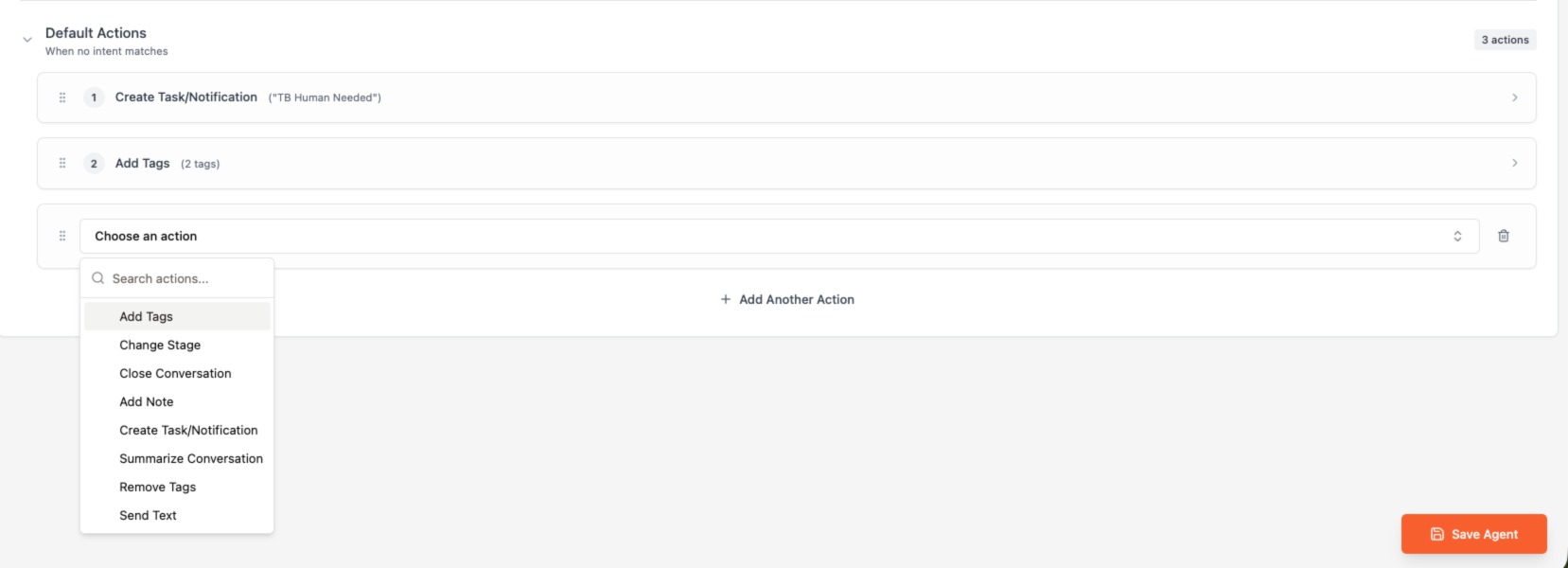
No matter how many intents you turn on, a lead will eventually say something that doesn’t match any of them. That’s what the default (or fallback) intent is for, it’s what triggers when the agent can’t confidently match a message to anything else.
The fallback runs whatever actions you’ve set up for it. Leave it unconfigured and that lead just goes unanswered with no reply and no alert, a silent fail nobody notices until the lead has already moved on. Set it to ping a human instead, pair it with a task or notification so someone on your team catches the conversation and follows up. This is one of the more important settings to get right, since it’s the safety net for everything that doesn’t fit the intents you’ve already defined.
Test in the Playground Before You Go Live
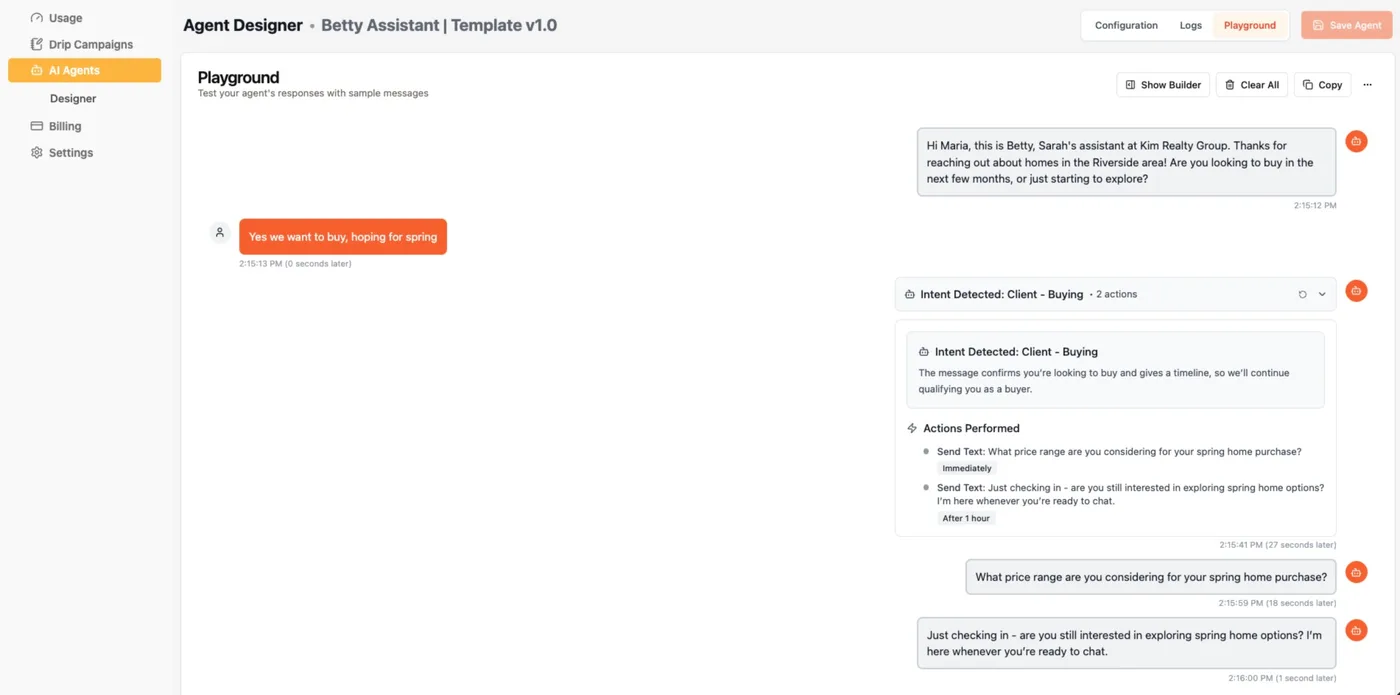
Once your merge fields, intents, fallback, tags, and exclusions are configured, there’s no need to test on real leads. Use the Playground to run through the conversation yourself, playing the part of the lead, before anything goes out to a real contact.
This is the fastest way to catch a mismatched intent, a placeholder you forgot to update, or a tagging action that isn’t quite right. A few minutes in the Playground can save you from awkward interactions with real prospects.
Pay special attention to edge cases: what happens if someone asks a question the agent isn’t configured to handle? Does the fallback response sound natural? Is the handoff to a human smooth? These details matter when the agent is representing your business around the clock.
Once you’re happy with your agent, don’t forget to switch it on to make it live.
Want Us to Handle the Personalization for You?
If you’d rather have our team build this out based on how your leads actually talk to you, reach out to support@textingbetty.com and we’ll set up custom personalization based on your current conversations. We’ll review your account, identify patterns in how leads communicate, and configure your agent to handle those situations naturally.
Related posts
How to Send Bulk Texts in Follow Up Boss
Follow Up Boss has batch email but no bulk texting. Here is how to text a list of contacts from FUB safely, step by step.
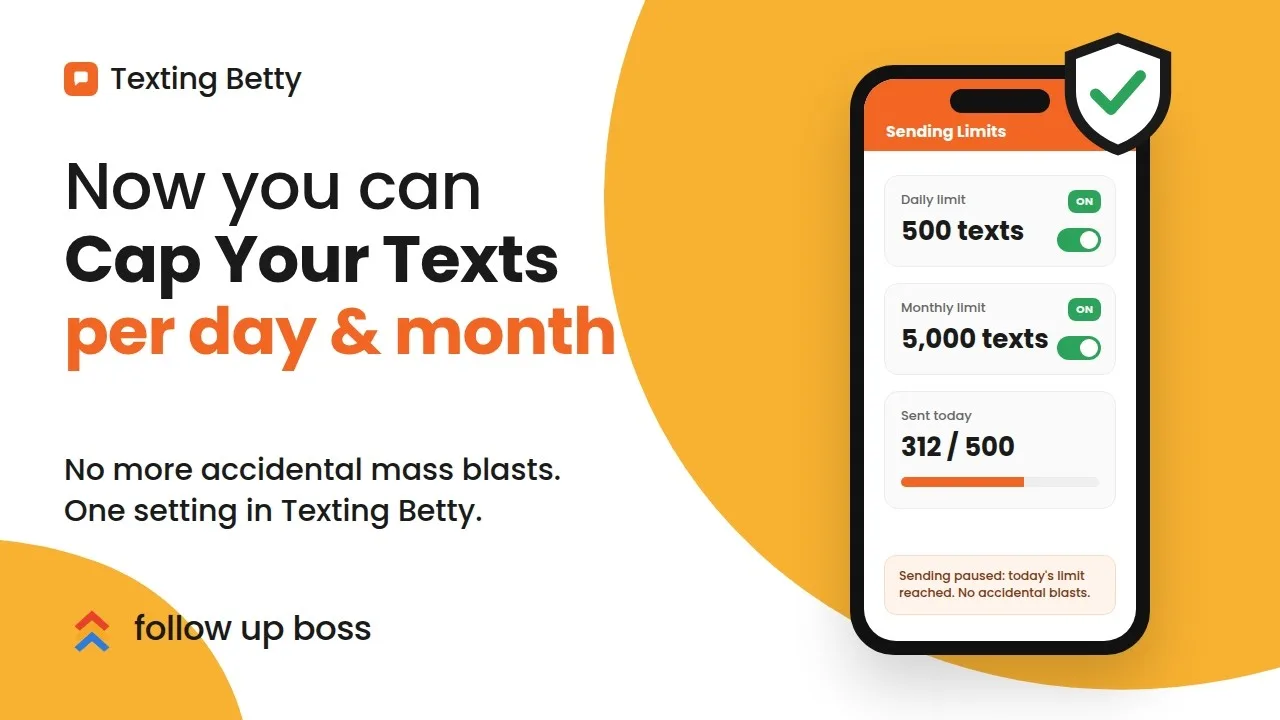
How to Set Sending Limits in Texting Betty
Set daily and monthly Texting Betty sending limits to stop runaway automation while keeping manual messages and AI replies flowing.
How to Verify Your Texting Betty Setup and Earn Your $200 Credit
Verify your Texting Betty setup, complete four tasks, and unlock your $200 credit fast.